

A fast, modern little editor for Windows — with a clean rounded window, a proper settings dialog, and everything remembered between sessions. It happily handles a throwaway plain-text snippet and a genuinely formatted note, and it now does the formatting the way the web does: as real, WYSIWYG HTML. Think of it as the notepad I always wanted: quick to open, pleasant to look at, and just as comfortable with a shopping list as with a note full of headings, colours, and images.
Why I Built This
The built-in Windows Notepad has actually come a long way. These days it follows the system dark theme, has tabs, and even does a bit of AI. It is a perfectly good tool, and I still use it. But it was never quite the editor I had in my head: I wanted something with its own personality — a rounded window that looks at home on Windows 11, a clear way to flip between plain text and properly formatted text, and formatting that feels modern rather than like a leftover from the 1990s.
I also had a very concrete itch to scratch. I keep small notes all over the place, and I wanted them to open in my editor, looking exactly the way I like — not in whatever the system decided should handle that file type this week. So I wanted an editor I could register for .txt and .html files without needing administrator rights, that opens instantly, remembers where it was, and simply feels good to use every single day.
So I built HWPad — a small editor that does the everyday things well and looks good doing them.
Then came vibe coding with Claude. With the help of Claude Opus, HWPad grew from a plain window into a modern, rounded editor with a real settings dialog, a full WYSIWYG formatting bar, per-session memory, and even a built-in diagnostic log — and I only had to step in and tweak the code myself a handful of times. Most of the work was a conversation: I described what bothered me, and the editor grew feature by feature.
What Is HWPad?
HWPad is a lightweight Windows editor with a custom, borderless window. It opens and saves both plain text and formatted HTML, supports light and dark themes, and rounds its corners on systems that can. It is a single self-contained app — no installer, no runtime to chase down, nothing to configure before you can start typing.
The core idea is simple: give me Notepad’s speed, but with a modern look and a few genuinely useful extras. Everything beyond that — the theming, the file associations, the window remembering its place — exists because it made my own daily use a little nicer, not because a feature list demanded it.
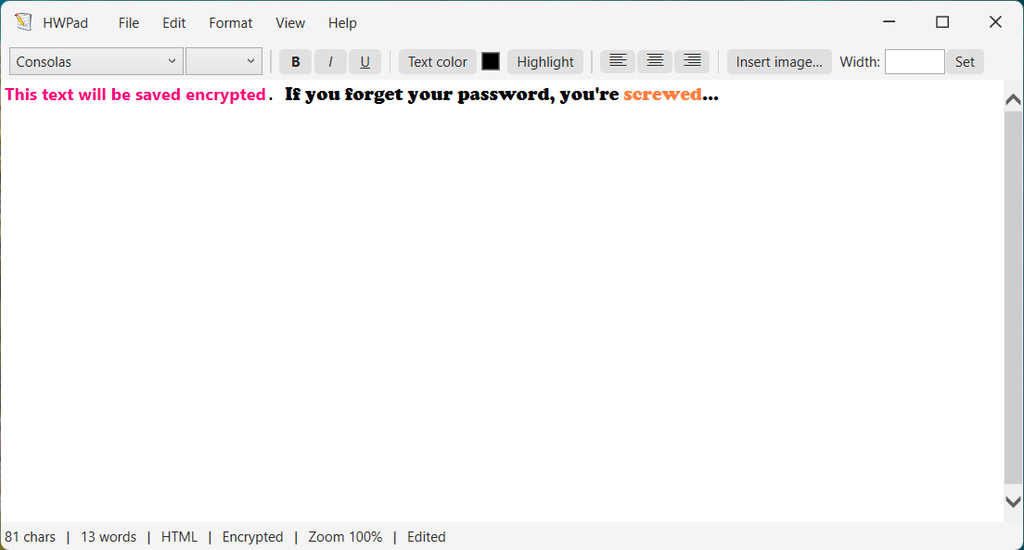
Plain Text or Formatted — Your Choice
Every new session starts in Plain Text mode with a crisp monospaced font (Consolas), which is perfect for notes, code snippets, configuration fragments, and logs. Plain text keeps things predictable: what you type is exactly what gets saved — a normal .txt file, with no hidden formatting sneaking in.
When you want more, switch to HTML (formatted) from the Format menu and the document becomes a real rich-text surface — ready for headings, bold and italics, different fonts, colours, alignment, and even images. Formatted notes are saved as clean .html files, so they open in any browser too, not just in HWPad.
- Plain Text — plain, monospaced (Consolas), distraction-free, saved as a normal
.txtfile. - HTML (formatted) — fonts, colours, alignment, and images, saved as a clean
.htmlfile.
The switch is designed to never surprise you. You never have to remember to “turn on” rich text first: the moment you apply any formatting — bold, a font, a colour — HWPad quietly moves you into HTML mode and keeps typing. And it is careful about your text. Switching an existing plain-text note to HTML changes nothing about the words or their monospaced look; it simply unlocks the formatting tools. Only when you start a brand-new, empty document does flipping to HTML give you the friendlier proportional default font (Bahnschrift, 11 pt) to write in.
Going the other way — from HTML back to Plain Text — cleanly strips the formatting and returns the whole document to Consolas, with no nagging dialog, because if you asked for plain text you clearly meant it. The current mode is always shown in the status bar, so a quick glance tells you whether you are in plain or formatted text. And when you open an existing file, HWPad picks the right mode automatically: .html files open formatted, everything else opens as plain text.
A Real WYSIWYG Formatting Bar
This is the big change under the hood. Earlier versions of HWPad leaned on the classic Windows rich-text control; the current version is built around a genuine HTML editing surface, so what you see on screen is exactly what lands in the saved file. That opened the door to a proper formatting toolbar that appears whenever you are in HTML mode.
- Font and size. Pick any installed font family and a size from a tidy drop-down, right from the toolbar.
- Bold, italic, underline. The usual toggles, with the familiar
Ctrl+B/Ctrl+I/Ctrl+Ushortcuts. - Text colour and highlight. Set the text colour (with a little swatch showing the current pick) or highlight a passage.
- Alignment. Left, centre, or right — one click each.
- Embedded images. Insert a picture straight into the note; it is embedded in the file itself, so the note stays self-contained. A width box lets you resize it in pixels while the aspect ratio is kept automatically.
- HTML source view. For the curious (or the fussy), Format → HTML Source flips the editor to show the raw markup behind the note, then flips back.
The toolbar also stays in sync with wherever your cursor is: put the caret inside some bold, blue, centred text and the toolbar reflects that, so the buttons always describe what you are actually looking at.

Making It Yours: The Settings Dialog
The important choices live in a single settings dialog, reachable from Edit → Settings. There is no scattering of options across half a dozen menus — one window holds the things you actually want to change. Your preferences are stored in a simple, human-readable settings.json file, kept preferably right next to the executable, or in your local app-data folder if that location happens to be read-only.
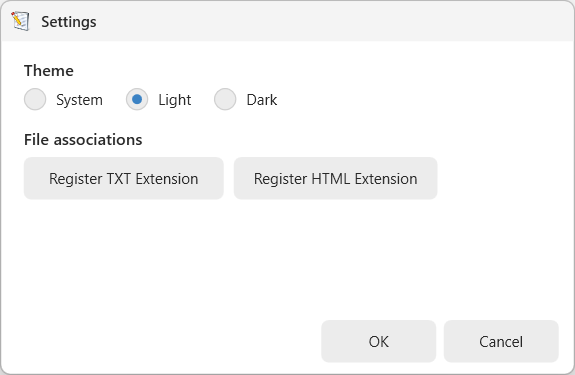
Some of the things you can adjust:
- Theme — Light, Dark, or “System” to follow Windows automatically.
- File associations — register HWPad as a handler for
.txtand.htmlfiles.
File Associations Without Admin Rights
Registering an app for a file type usually means a machine-wide change that demands administrator privileges — exactly the kind of friction I wanted to avoid. HWPad instead registers .txt and .html entirely per user, so it works fine on a locked-down account with no elevation prompt in sight.
One click adds HWPad as a handler for that file type, a friendly confirmation tells you it worked (“Added HWPad as handler for .TXT files.”), and Windows is notified so the change takes effect right away rather than after the next reboot. If HWPad is not yet your default for that type, Windows may still ask you to confirm the choice once via “Open with” — that final say always stays with you, by design.
The Little Things That Make It Pleasant
Rounded Corners and Themes
On capable systems — Windows 11 with hardware-accelerated rendering — HWPad shows a modern rounded window that looks at home on the desktop rather than sitting on top of it. On systems without that support, such as a Hyper-V client with a basic display driver, it gracefully falls back to a clean, square-cornered window instead of showing visual artifacts or half-broken effects. It detects what the machine can actually do and adapts, so it looks intentional everywhere. A subtle one-pixel frame always outlines the window — light gray in the light theme, a soft dark gray in the dark theme — so it stays easy to spot even against a matching background.
Both a light and a dark theme are built in, and “System” simply follows whatever Windows is doing. The whole app moves together — menus, dialogs, the settings window, the About box — so nothing looks out of place when you switch.
A Status Bar That Tells You What Matters
The status bar at the bottom keeps the essentials in view without clutter: the character and word counts, whether you are in Plain Text or HTML mode, and the current zoom level. It is the sort of information you do not think about until you need it, and then it is right there.
Zooming in and out is smooth and remembered per view, which is handy when you want to bump the text size up for a moment without changing your actual font.
It Remembers Where You Left Off
When you close HWPad, it quietly saves the window’s size, position, and maximized state — and restores them the next time you open it, right down to whether it was maximized. If a monitor was unplugged or the layout changed in the meantime, it is smart enough not to reopen off-screen where you would have to hunt for it. It is a small thing, but it is exactly the kind of small thing that makes an app feel like it belongs on your desktop rather than just visiting it.
Tip: Start typing for quick notes in Plain Text mode, and switch to HTML from the Format menu the moment you need a heading, a different font, or a splash of colour — or just start formatting and HWPad switches for you.
When Something Misbehaves: The Built-In Log
Every now and then a Windows app does something odd in one specific situation and nowhere else. HWPad had exactly that: when it was launched indirectly — for example by opening a note from another program, with HWPad itself living on a mapped network drive — its title-bar icon occasionally went missing and the window sometimes opened behind the app that started it. Reproducing that reliably is hard, so I gave HWPad a way to explain itself.
There is a small, opt-in diagnostic log. It is off by default and writes nothing at all until you enable it. When you do, HWPad records a detailed snapshot of each start-up to a log file: the full command line and any file it was asked to open, where the executable actually lives and what kind of drive that is (local, mapped network, or UNC path), which program launched it, and exactly how the app icon was loaded — including whether the icon came out empty. It even notes whether the window managed to come to the foreground. That is the kind of information that turns a vague “sometimes it misbehaves” into a precise, fixable cause.
Turning it on is deliberately simple. Open the settings.json file and add a single line:
{
  "theme": "System",
  "enableLog": true
}
The next time HWPad starts, it writes its diagnostics to %LocalAppData%\HWPad\HWPad.log — a location that is always writable, even when the app itself runs from a read-only or network drive. Each line is timestamped down to the millisecond, so the sequence of events is easy to follow. When you are done, set enableLog back to false and HWPad goes quiet again. It was precisely this log that pinned down the network-drive icon issue — and once the cause was clear, the fix was easy: the icon is now loaded from a copy embedded inside the program itself, so it shows up correctly no matter where HWPad is started from.
Portable by Design
HWPad is a self-contained Windows app with no external dependencies. Its settings live in a simple settings.json right next to the executable (or in your local app-data folder if that location is read-only), so there is no registry sprawl and nothing hidden away. You can drop the whole thing onto another machine — or a Hyper-V client — and have your familiar editor up and running in seconds, associations and all.
That portability is not an afterthought; it shaped several decisions. The per-user file associations, the always-writable log location, and the embedded icon all exist so that HWPad behaves the same whether it lives on your system drive, a USB stick, or a mapped network share.
Where It Stands Today
What started as “a nicer Notepad” has grown — with a lot of help from Claude Opus — into an editor I genuinely enjoy using: light and dark themes that follow Windows, rounded corners with a graceful fallback, a plain-text/HTML mode switch with sensible default fonts, a full WYSIWYG formatting bar with fonts, colours, alignment and embedded images, per-user file associations, a themed About and settings experience, an opt-in diagnostic log, and a window that remembers exactly where I left it.
It is still a small, focused editor by design, and that is the point. It does the everyday things well — fast, good-looking, and out of your way — without trying to become a word processor. Modern Notepad is a fine tool and it keeps getting better; HWPad is simply the version of that idea that fits the way I like to work, shaped one small conversation at a time.
If you have ever wished Notepad looked and felt just a little more like your own, HWPad is my answer to that wish.
Updates
The article above describes HWPad as of version 1.3.0.0. New versions and their changes are logged here.
Version 1.4.0.0 — July 2026
This release is all about keeping notes private. Any note — plain text or formatted HTML — can now be encrypted with a password, and HWPad goes to some length to make sure that both the file on disk and the password in memory are genuinely hard to attack.
- Encrypt any note with a password. A new Format → Encrypted switch turns encryption on for the current note. Tick it, choose a password (typed twice to confirm), and from then on Save and Save As write the note in encrypted form. Untick it and the note goes back to a normal
.txtor.htmlsave. The status bar shows a clear Encrypted marker whenever the switch is on. - Strong, modern encryption. Notes are protected with AES-256 and a key stretched from your password using PBKDF2-HMAC-SHA512 (310,000 iterations) — SHA-512 is chosen because its 64-bit operations are far less friendly to GPU/ASIC brute-force attacks. Every file carries its own random salt and initialisation vector, and an HMAC-SHA256 signature is checked before anything is decrypted — so a wrong password or a tampered file is caught immediately rather than producing garbage. The key-derivation settings are stored inside each file, so they can be strengthened in future versions while older notes still open. The file extension never changes: an encrypted note still ends in
.txtor.html. - Transparent open. HWPad recognises its own encrypted files automatically (they start with a small
HWEncmarker). Open one and it simply asks for the password — get it right and the note opens exactly as you saved it, in the correct plain-text or HTML mode. Because the password is remembered for that session, a later Save re-encrypts with the same password, no re-typing needed. - A friendly “wrong password” prompt. Mistype the password and HWPad does not just fail silently — it offers three clear choices: Retry, Open as Plain Text (to inspect the raw file), or Cancel.
- The password is guarded in memory, too. Encryption is only half the story; a password sitting in memory can be just as exposed. HWPad keeps passwords in a protected
SecureStringfor their whole lifetime, decrypts them only for the brief moment a key is derived, and immediately wipes every temporary copy (password bytes, derived keys, and the decrypted plaintext buffer) afterwards — so memory dumps and similar tricks have nothing lying around to find. - Drag & drop to open. Drop a file straight onto the editor and HWPad opens it, just like using File → Open (offering to save your current work first if needed).
- Editor focused on launch. HWPad now puts the cursor in the editor the moment it starts, so you can begin typing right away without clicking first.
© 2026 by Helmut Wagensonner. HWPad is a personal project. All product and company names are trademarks of their respective owners.