
A password manager that lives on my own machine, in my own file, behind my own master password — with no cloud, no account, no telemetry, and, most importantly, no back door. It sits quietly in the system tray, fills login forms in Edge from a keystroke, keeps secure notes blurred until I ask for them, and generates passwords that are either pure noise or a saying I can actually remember. If the master password is gone, the data is gone. That is not a shortcoming. That is the entire point.
Why I Built This
I have used commercial password managers for years, and for years I told myself the trade-off was fine: convenience in exchange for trusting somebody else’s servers, somebody else’s code, and somebody else’s promises. I do not tell myself that any more. Big vaults are big targets, and the news has repeatedly shown what happens when one of them is breached — encrypted blobs walk out of the door together with enough metadata to make them worth attacking at leisure.
But the breaches are not really what pushed me over the edge. What pushed me was the direction of travel in politics, and especially here in the EU. Under the banner of fighting crime — and it is always a banner nobody can argue with — there is a steady, patient push into the private sphere of ordinary citizens: proposals to scan private messages before they are encrypted, recurring attempts to require “lawful access” to encrypted systems, ever-broader data retention. Each individual step is presented as narrow, proportionate and temporary. Taken together, they describe a world in which the default assumption is that your private data should be readable by somebody other than you.
Here is the thing that gets lost in those debates: there is no such thing as a back door that only the good guys can walk through. A key that exists can be stolen, subpoenaed, leaked or abused. A scanning mechanism built for one purpose is a mechanism that can be pointed at another purpose by the next government, or the one after that. The only architecture that cannot be quietly repurposed is the one where the key never existed anywhere but in the user’s head.
So I built HWSecret — a personal vault where I can read every line of the code that touches my secrets, where nothing ever leaves the machine, and where there is provably nothing to hand over. No recovery key, no escrow, no “account recovery” flow, no support line that can reset anything. Lose the master password and the vault is a brick. I would rather carry that risk myself than outsource it to somebody who can be compelled.
HWSecret is the first of my tools that was built 100% vibe coded, from the very first empty folder — with the help of Claude Opus it grew from “encrypt a file with a password” into a complete tray application with browser form filling, global hotkeys, a Windows 11 interface and a two-mode password generator. I only had to step in and change code myself a handful of times. Most of it was a conversation: I described what I wanted, tried it on real hardware, said what still bothered me, and the vault sharpened itself one small step at a time.
What Is HWSecret?
HWSecret is a self-contained Windows password manager. It keeps web logins and secure notes in a single encrypted file called vault.hwsecret, which lives next to the executable — so the whole thing is portable: copy the folder to a stick and your vault comes with it. There is no installer, no service, no database engine, no account, and not a single network call except the one optional feature that explicitly asks the internet for a saying.
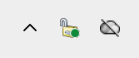
Day to day it lives in the system tray. A global hotkey — Ctrl+W by default — brings the window up from anywhere, and so does a double-click on the tray icon or its context menu. The icon itself tells you the state at a glance: a closed padlock when the vault is locked, an open one when it is not. Unlock it once with the master password and everything is there; walk away and it locks itself again.
The Encryption — and Why There Is No Back Door
This is the part that matters, so let me be precise rather than vague. The master password is never stored anywhere, in any form. It is stretched into a key using PBKDF2-HMAC-SHA-256 with 600,000 iterations and a 32-byte random salt that is unique to your vault. That derived key does not encrypt your data directly — it only unwraps a 512-bit vault key that was generated from the operating system’s cryptographic random source when the vault was created. The vault key then protects the actual payload with AES-256 in CBC mode, authenticated with HMAC-SHA-256 in an encrypt-then-MAC construction, with a separate 256-bit key for the MAC and a context string mixed in so a block from one part of the file can never be replayed into another.
The practical effect of that indirection is nice: changing the master password re-wraps the vault key with a fresh salt and never touches a byte of the encrypted payload. And the authentication code means a tampered vault file is rejected, not silently half-decrypted into garbage.
So How Strong Is That, Really?
Honest answer: the cipher is not the weak link, and it never was. Nobody is going to brute-force a 256-bit AES key — 2256 is not a big number, it is a number with no physical meaning. The only realistic attack on a file like this is to guess the master password, and that is exactly what the 600,000 iterations are for. They make every single guess expensive.
Some arithmetic to put it in perspective. Public hashcat benchmarks put a high-end consumer GPU at roughly 1.75 million PBKDF2-HMAC-SHA-256 hashes per second at 1,000 iterations. That rate scales inversely with the iteration count, so at 600,000 iterations the same card manages on the order of 3,000 guesses per second — not billions, thousands. Now take a 16-character password from HWSecret’s own generator using its default character sets (72 possible characters): that is about 5 × 1029 combinations. Against a single such GPU you are looking at something like 1026 seconds. Hand the attacker a billion of those GPUs running in parallel and they are still on the order of the age of the universe.
The flip side is equally honest: none of that helps if the master password is your dog’s name. Slow hashing multiplies the attacker’s cost, it does not create entropy out of nothing. A short or common password will fall to a dictionary run regardless of how many iterations sit in front of it. That is precisely why the generator is a first-class part of the app rather than an afterthought — and why the app deliberately refuses to impose complexity rules on the master password itself. Your vault, your judgement.
- No recovery. There is no escrow key, no reset link, no secret second password. The code contains nothing that could decrypt the vault without the master password, because no such thing was ever written.
- No network. Nothing is uploaded, synced, phoned home or checked for updates. There is no server to breach and no account to compromise.
- Nothing to hand over. If somebody demands the data, there is genuinely nothing to give but an encrypted file — and I cannot be forced to produce a key I never wrote down.
Say it plainly: if the master password is lost, the passwords are lost. That is not a bug to be fixed in a later version. It is the guarantee.
Web Logins That Actually Fill the Form
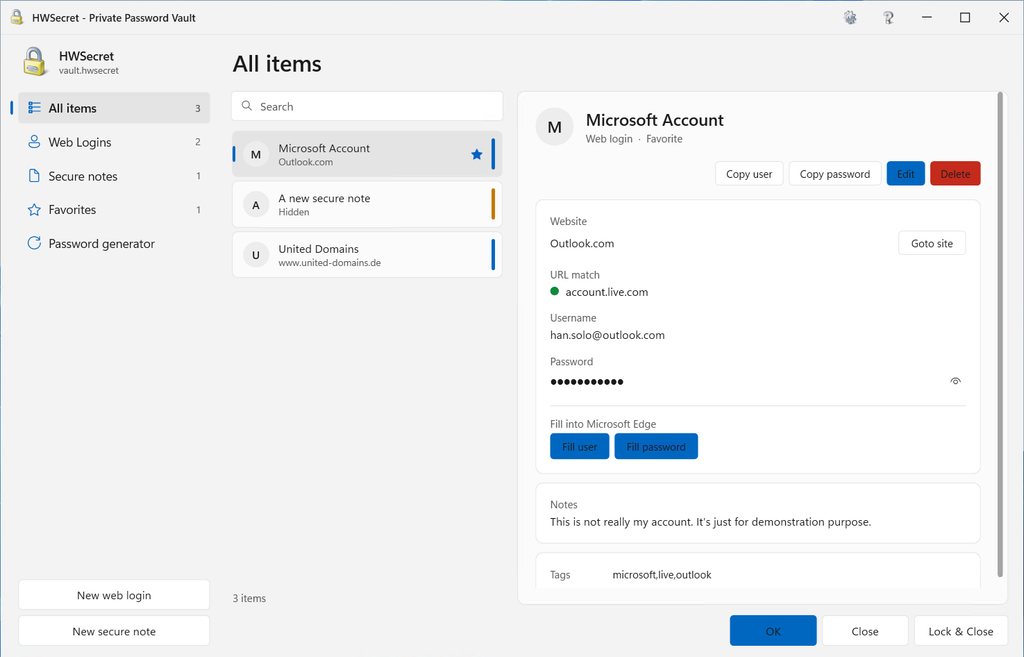
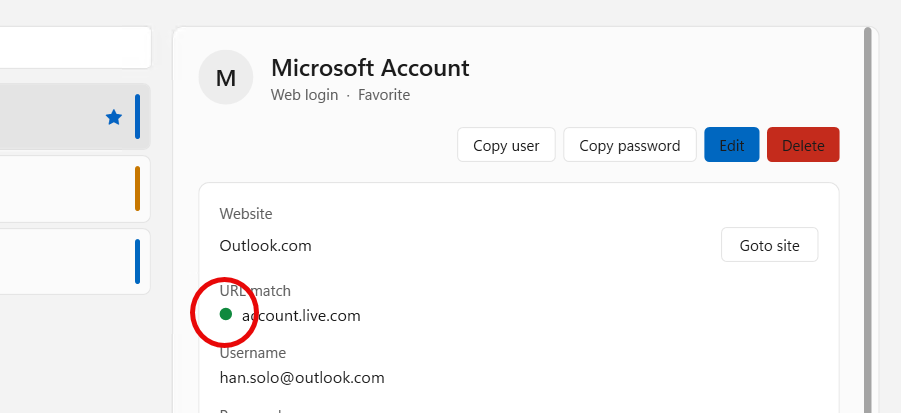
A vault you have to copy and paste out of is a vault you stop using. So web logins carry two separate address fields, and the distinction turns out to matter. Website is the page you want to go to — the target of the “Goto site” button. URL match is just a fragment of text that has to appear in the browser’s address for this entry to be considered relevant, for example contoso.com. HWSecret watches the address of the active Microsoft Edge tab, and when it matches, a small green dot lights up next to the field so you can see at a glance that this entry belongs to the page in front of you.
Filling is done the way a human would: the credentials are typed into whatever field currently has the focus, as real keystrokes. No browser extension, no injected JavaScript, no automation interface into the browser’s password store — and therefore no extra attack surface sitting inside the browser. There are two buttons, Fill user and Fill password, deliberately separate, because plenty of sites nowadays ask for the username first, think about it, and only then show the password box.
Without Ever Opening the Window
Since the field has to have the focus anyway, the fastest path skips the app entirely. Two global hotkeys — Ctrl+1 for the username and Ctrl+2 for the password by default, both freely configurable — do the filling directly. Click the username box in Edge, press the hotkey, done. The neat part is that those hotkeys are only registered while a matching login exists for the page you are on, and the tray icon shows a green badge to tell you so. On every other page the keys belong to the browser again, exactly as they should.
Secure Notes That Do Not Shout
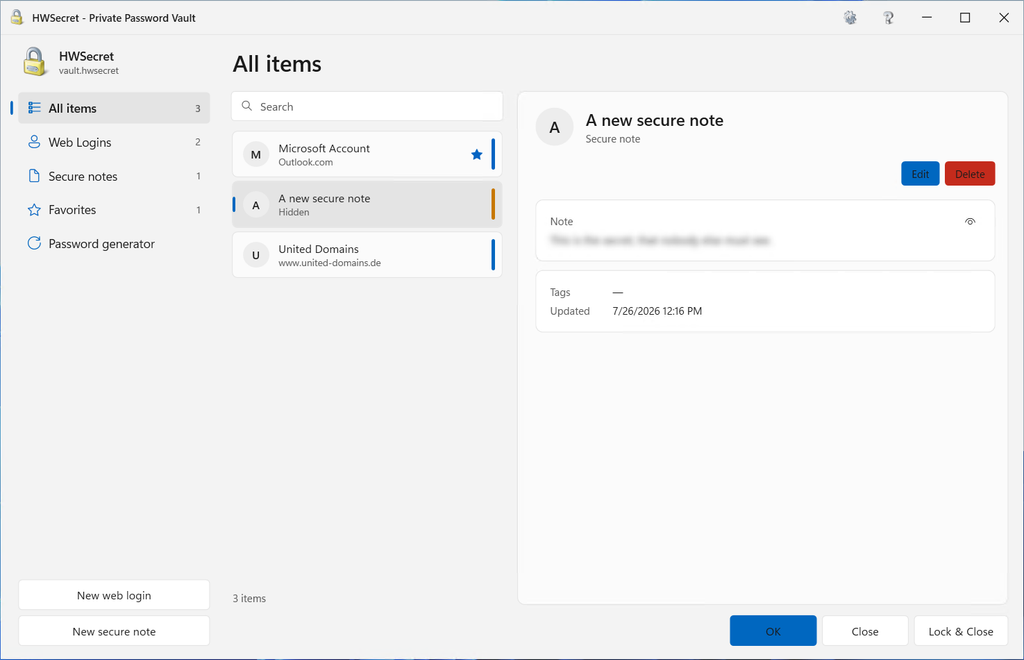
Recovery codes, licence keys, the answer to a security question you invented years ago — the things that do not fit into a username-and-password shape. Secure notes hold them, and they are treated as secrets rather than as text. By default a note is shown blurred, and only becomes readable when you click the small eye in the corner of the card. Select something else and it blurs again straight away, so a note never quietly stays open on screen.
There is a detail here I am rather fond of, because it is exactly the sort of thing that quietly ruins a security feature: the list of items used to show the first line of each note as a preview. A blurred detail view is worth very little if the same text is sitting in plain sight two centimetres to the left. So while blurring is switched on, the list simply says Hidden. The whole behaviour can be turned off in the settings for anyone who finds it fussy.
Two Ways to Make a Password
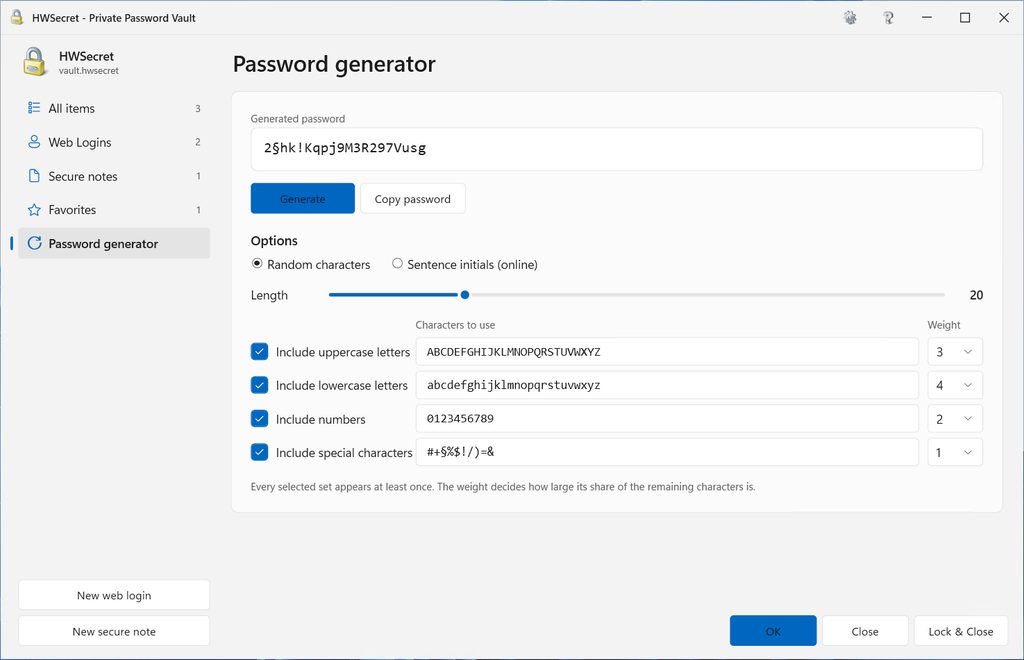
The generator earned its own place in the navigation rail, because it grew into something more interesting than the usual slider-and-three-checkboxes affair.
Random Characters, Your Way
The random mode works with four character groups — uppercase, lowercase, digits and special characters — and every one of them is editable. The full alphabet is there by default, and if a particular site refuses a certain symbol, or you simply cannot stand telling O from 0, you delete the offending characters from the box and they are gone. Each group also carries a weight from 1 to 10, which decides how big its share of the password will be, so you can ask for “mostly letters with a sprinkle of symbols” instead of an even scatter. Every enabled group is guaranteed to appear at least once, and the result is drawn from a cryptographic random source with unbiased index selection — no modulo skew.
Sentence Initials — a Password You Can Recite
The second mode is the one I actually enjoy using. It goes online, finds a proverb or idiom — in English or German, from Wiktionary’s proverb and idiom categories, with a Wikipedia sentence as a fallback — with as many words as you asked for, and builds the password from the first letter of each word. “Don’t watch the clock; do what it does. Keep going.” becomes DwtcdwidKg. Special characters and digits are then woven in, either a chosen number of them scattered at random positions, or one after every n characters. The saying itself is shown underneath, so you can memorise the sentence and reconstruct the password in your head.
And because honesty is worth more than marketing, the app says so on screen, in amber: a password you can remember is easier to guess than one you cannot. Sentence mode trades entropy for memorability. Use it for the things you have to type from memory, and use pure random for everything the vault types for you.
Small Guards, Constantly on Duty
A Clipboard That Cleans Up After Itself
Copying a password puts it into the clipboard, where every other program on the machine can read it. So HWSecret clears it again — and it does so on two triggers. The moment a password is typed into a form, by button or by hotkey, it is wiped from the clipboard at once rather than waiting for a timer; there is no reason for it to still be there once it has arrived where it was going. Everything else, a copied user name included, is cleared when its configurable timeout expires.
Two subtleties make the difference between a feature and a nuisance. First, HWSecret only clears its own content: it remembers a salted fingerprint of what it put there, and if you have copied something else in the meantime, your text is left alone. A password manager that wipes your clipboard out from under you is a password manager you disable. Second, a secret is written to the clipboard with the Windows flags that keep it out of the clipboard history and the cloud clipboard — because clearing the clipboard does not remove anything from the history, and a password you could still fish out with Win+V was never really deleted.
Locking, on Your Terms
The vault locks itself after a period of inactivity — and if you enter 0, it never does, because there are machines where that is the right answer and I dislike software that argues. There is a Lock & Close button for when you are done, an Unlock vault entry in the tray menu that shows nothing but a password prompt and disappears again, and the tray icon that always tells you which state you are in. Locking clears the keys from memory; the green match indicator and the fill hotkeys only work while the vault is open.
Saving Without Losing
The vault is written atomically: a new file is built, verified, and only then swapped into place, with the previous version kept as a .bak. A power cut in the middle of a save cannot leave you with half a vault — which, when the file is everything, is not a nicety.
An Interface That Looks Like It Belongs
HWSecret follows the Windows 11 look, including the light and dark theme setting of the system, and switches with it. The window has a custom title bar with its own settings and about icons, and inside there is a navigation rail on the left — All items, Web Logins, Secure notes, Favorites, Password generator — with the content on the right, in the manner of the Windows Settings app. List cards carry a thin coloured stripe on their right edge so a web login and a note are distinguishable at a glance, and the search box filters as you type, with a small clear button that appears when there is something to clear.
The settings live in a tabbed dialog — Appearance, Hotkey, Filling, Security — organised specifically so that nothing ever has to be scrolled, and the about box is a single tidy card. All of it is stored in one HWSecret.json next to the executable, falling back to your per-user app-data folder if the program directory happens to be read-only, so the app stays genuinely portable.
Built Entirely by Conversation
Every one of my other tools started as code I had written at some point and then modernised with Claude’s help. HWSecret did not. It began as an empty directory and a paragraph describing what I wanted, and grew from there in a long series of small, concrete requests: put it in the tray; use the window frame from my scanner tool; the settings dialog scrolls, fix it; the layout on the left should look like Windows Settings; make the search box behave; add an eye to the password field; now build me a proper generator; now make it find proverbs.
What surprised me was how much of the work was finding things rather than writing them. A WPF style that silently did not apply to any of my windows. A tab control whose content was invisible to accessibility tools. A text box with double padding. A checkbox that fired its event handler while the window was still being built and crashed the app on startup. A note field that was half-hidden because a layout row had been starved and quietly overlapped the row below it. None of those were things I asked for — they were caught by measuring the running application rather than trusting that it looked about right.
I had to reach into the code myself only a handful of times. The rest was describe, test, describe again.
Where It Stands Today
Version 1.0.0.0 is finished and frozen. It holds web logins and secure notes in an AES-256 vault behind a 600,000-iteration key derivation; it lives in the tray with a global hotkey and a state-aware icon; it fills forms in Edge from buttons or from context-sensitive hotkeys with a green dot to tell you when an entry matches; it blurs notes until you ask; it wipes a filled password from the clipboard the instant it lands in the form and clears only its own content otherwise; it locks itself when you want and never when you do not; it generates passwords from four weighted, editable character groups or from proverbs in two languages; and it wears the Windows 11 theme you already chose.
Application logins — for the programs that are not web pages — are the obvious next chapter, and there is already a place reserved for them next to Web Logins. But that is a story for a later version.
What it is today is a vault I trust, for the simple and slightly old-fashioned reason that I can read every line that touches my secrets, and there is nothing in there but the lock. No cloud, no account, no telemetry, no recovery, no back door — by construction rather than by promise.
The best guarantee that a key cannot be handed over is that it was never anywhere to be taken from. HWSecret is my answer to a decade of being asked to trust somebody else with mine.
Updates
The article above describes HWSecret as of version 1.0.0.0. New versions and their changes are logged here.
Version 1.1.0.0 — July 2026
Two things drove this release. The first is mundane and was annoying me daily: I have several Microsoft accounts, and they all live at the same address. The second is that a vault locked inside one machine is only half a password manager — I wanted the same vault on my desktop and my laptop, without handing it to anybody’s cloud service in readable form.
When several logins fit the same page
- You choose, the app does not guess. Until now HWSecret quietly picked one of the matching entries — and with three Microsoft accounts on
account.microsoft.comthat was a coin toss. Press the fill hotkey now and a small window appears right next to the field you clicked, listing every login that fits the page. Arrow keys move, Enter fills, Esc cancels, the number keys jump straight to an entry, and a mouse click works too. - Title and user name in the list. Two accounts for the same service usually carry similar titles; the user name is what actually tells them apart, so both are shown.
- Pick once, then just fill. The choice sticks for that page. Choose the account with the user-name hotkey and the password hotkey follows it automatically — no second question. Leave the page and the choice is dropped.
- A user name may be guessed, a password never. A wrong user name is harmless and gets overwritten. A wrong password would be sent to a site it does not belong to, so when the page is ambiguous and nothing has been chosen yet, the password hotkey opens the chooser instead of filling something.
- The one you actually use comes first. HWSecret now remembers when an entry was last filled and sorts the list by favourite, then most recently used, then title. The account you always take on that site rises to the top by itself.
- Nothing is typed blind. The chooser takes the focus for a moment, and afterwards the exact browser window is brought back. Before a single character is sent, HWSecret checks through the accessibility tree that the focus really is inside the page — a password must never end up in the address bar, where the browser would keep it in its history and suggestions.
Seeing the matches in the window
- A “Matches” category that appears when it is needed. When the open page offers more than one login, the navigation rail grows a Matches entry with a count and selects it, so the list shows exactly the relevant cards and nothing else. Leave the page and the category you were in before comes back.
- A single match just gets highlighted. With only one matching login the view is not taken over. Its card gets a green stripe on the right edge and is scrolled into view, and the selection is left alone.
- Window and hotkeys share one decision. Clicking an entry under Matches is the same choice the picker asks for, so the fill hotkeys follow it. Merely opening the category does not count as choosing — otherwise the password hotkey would start guessing again.
- The tray icon says how it stands. The green dot still means “this page has a login”. A green + next to it means there is more than one. A number was tried first and is simply unreadable at sixteen pixels.
One vault, several machines
- The vault can live wherever you want. It is no longer tied to the program folder. Put it in OneDrive and the same vault is on every machine you use — still encrypted, still with no key anywhere but in your head. The cloud provider stores an opaque blob and nothing else.
- Open vault… and Create vault… HWSecret now starts perfectly happily without a vault. If none is configured, or the configured one has gone missing, the lock screen offers a file picker instead of a password box. New vaults use the extension
.Vault; a vault from version 1.0.0.0 is picked up automatically, so an update never looks like data loss. - The file is never held open. It is opened for the instant of a read or a write and closed again immediately, which is exactly what a synchronising client needs in order to do its job.
- Reload vault. Changed something on the other machine? A new button in the settings re-reads the file from disk — without asking for the master password again, because the key already in memory still fits. It even survives a password change made elsewhere, since that only re-wraps the same underlying key. One honest caveat: two machines editing at the same time still means last writer wins, so reload before you edit.
A backup file that should not have existed
While going through the file handling for the OneDrive work, I found something I am glad I looked for. Every save kept the previous file as a .bak — and after a master password change that copy was still encrypted with the old password. Anyone who copied the folder could have read the entire vault with exactly the password you had just replaced, which defeats the whole point of replacing it. I reproduced it, and then removed backup files altogether: being one save old, they recovered almost nothing while doubling what an attacker could carry away.
The temporary file used while saving stays, because it is what makes a write atomic — the vault is encrypted, so a half-written file is not a partial loss but a total one. It now goes to your system temp folder rather than next to the vault, so a sync client never sees it. That only works when both sit on the same drive, since Windows can swap files atomically only within one volume; on a different drive HWSecret keeps the temporary file beside the vault, because atomicity beats tidiness.
The smaller things
- Every field can be selected and copied. Website, URL match, user name, password and notes on a login, and the text of a secure note once it has been revealed. Ctrl+C on the password copies the real password even while it is shown as dots, and copying from a note goes through the same protected path as the copy button — cleared after the timeout and kept out of the Windows clipboard history. A blurred note cannot be selected at all, otherwise its content could simply be copied past the blur.
- Right-click menu, and duplicating a login. The item list has a context menu with Duplicate, a favourite toggle and Delete; secure notes get the last two, since duplicating a note serves no purpose. A duplicate copies everything including the password, is named “Title (1)” — or the next free number — and therefore lands directly below its original, selected and ready to edit.
- Auto-lock up to seven days. The old ceiling of four hours was arbitrary. The limit is now 10,080 minutes, and
0still means never. - Readable files. The vault envelope and
HWSecret.jsonare now written indented instead of as one endless line. The encrypted part inside stays compact — formatting something nobody can read would only inflate it.
Version 1.2.0.0 — August 2026
This version adds icons to entries, an importer for RoboForm exports, a way to move a single entry from one vault to another, and a number of changes to how logins are matched and edited.
Entry icons
- Secure notes share one icon, shown in the item list and in the detail view.
- Web logins can carry the icon of their website. Get icon in the editor fetches it: the icon declared in the page is preferred, otherwise the usual locations such as
/favicon.icoare tried. - If the site does not answer, HWSecret takes the icon from the local Edge or Chrome favicon cache. All browser profiles are searched.
- Open icon file… uses an image you supply. Remove icon returns to the coloured letter, which remains the fallback whenever no icon is stored.
- Icons are scaled to 64 pixels and stored inside the vault, so they are fetched only once.
- An icon fetched for one site is applied to every other login with the same website.
- Update all icons in the settings does the whole vault in one pass. Logins sharing a website are fetched once, and several sites are contacted in parallel.
TIP: some sites refuse automated downloads and return an error to anything that is not a browser. Open the site once in Edge and press Get icon again — the browser stores the icon, and HWSecret reads it from there. No developer tools or console commands are needed.
RoboForm import
- Import from RoboForm… in the settings reads a CSV export produced by the RoboForm browser extension.
- Only web logins are imported. Bookmarks, search shortcuts and safe notes are skipped.
- Addresses are reduced to the host, so
https://store.serif.com/de/sign-in/?r=…becomesstore.serif.com, which is used as both website and URL match. - All candidates are listed with tick boxes before anything is written. Entries that already exist in the vault, and repeats within the file, are marked and pre-unticked.
- After the import HWSecret offers to delete the export file, which holds every password in plain text.
- The reader tolerates what real exports contain: a byte order mark, rows longer than the header, line feeds inside notes, and nested quotes.
Copying an entry to another vault
- Copy and Paste in the right-click menu of the item list move one web login or secure note between two vaults. This works after restarting HWSecret on a different vault, and between a physical machine and a virtual one whose clipboard is passed through.
- The entry is placed on the clipboard as an encrypted block, never as readable text. The clipboard is cleared immediately after a successful paste, on the machine that pasted.
- The pasted entry receives a new identity, so it cannot collide with anything already in the target vault.
- Two options in the settings, under Copy item:
- Prompt for transfer password — a password of your choice protects the copy and is asked for again when pasting.
- Use built-in password (less secure) — no prompt. This is a shared secret contained in the program, identical in all versions from 1.2.0.0 onwards. It keeps the entry out of the clipboard history, the cloud clipboard and other programs, but anyone who disassembles HWSecret can recover it. For a transfer that must stay private, use a transfer password.
Matching and hotkeys
- A login can hold several URL matches, separated by
|. Any one of them is enough for the login to be offered. Tags use the same separator. - Force active in the right-click menu activates a web login for the fill hotkeys although the page does not match it, for 30 seconds or until the next match. Useful when a site has changed its addresses. The forced entry is also the one the hotkeys use, so no chooser appears.
- The tray icon shows one dot instead of two symbols. It sits in the top right corner and its colour carries the state: green when a single login fits the page, light blue when several do. The green plus of version 1.1.0.0 is gone — beside a sixteen pixel icon there is no room to draw a symbol legibly, whereas a colour reads at a glance and leaves room for further states later.
- The key of a hotkey is now recorded rather than typed: click the field and press the key. Function keys, Print Screen, Scroll Lock, Pause, the navigation block and the numeric keypad are all accepted.
- Both hotkey pages show the resulting combination, and mark it (already registered) when another program on the system holds it.
Editing web logins
- Get from current website under the website box and under the URL matches box takes the address of the page open in the browser and reduces it to the bare host. Under URL matches it adds to the existing list instead of replacing it.
- The icon preview sits beside the website box in a fixed slot, so the box does not change width when an icon arrives.
Saving and reliability
- Operations that touch many entries — importing, updating all icons, applying an icon to related logins — now write the vault once instead of once per entry. An import of 250 entries takes about 20 milliseconds.
- Replacing the vault file is retried briefly if it is momentarily locked, for example by a virus scanner.
- A bulk icon update that runs into its time limit keeps and saves the icons found so far, and reports how many that were.
Settings
- The vault section now holds Reload vault, Update all icons, Import from RoboForm… and Change master password in a fixed layout, followed by the Copy item options.
- Existing settings files are read unchanged; hotkeys configured in earlier versions keep working.
© 2026 by Helmut Wagensonner. HWSecret is a personal project. All product and company names are trademarks of their respective owners.