

A quiet little tray tool for Windows that turns a short signal word into a full block of text — a greeting, a signature, a standard reply, a whole formatted footer with your company logo — and drops it straight into whatever app you happen to be typing in. Type dsom#, and before you have lifted your finger the shorthand is gone and your snippet is there in its place.
Why I Built This
I type the same things over and over. The polite opener for a mail, the little sign-off, the standard paragraph I send to customers, the footer with the logo and the legal line underneath it. Copying those from some “templates” document, or digging them out of an old mail, is exactly the kind of small, repeated friction that adds up over a day. I wanted to type a couple of letters and have the rest appear — everywhere, not just in one program.
There are big commercial text-expanders that do this, but they tend to be heavy, cloud-tied, or locked behind a subscription. I wanted something small and self-contained that I fully control: my snippets in a plain file I can read, back up, and share with colleagues; no accounts, no servers, no installer chasing runtimes across the internet. And crucially, it had to handle formatted text — because a footer without its logo and colors is not the footer I actually send.
So I built HWInsert — a tray app that watches for a signal word followed by a trigger key, deletes what you typed, and pastes the matching snippet into the active application, keeping the formatting intact.
With the help of Claude Opus, HWInsert grew from “paste a bit of text” into a proper little tool: a WYSIWYG HTML editor with images and colors, a shared snippets file for whole teams, a per-application activation list, and a modern tray menu — and most of it was a conversation. I described what bothered me, tested it live, and the tool sharpened itself one small step at a time.
What Is HWInsert?
HWInsert is a lightweight Windows system-tray application. It sits quietly next to the clock, watches for the little shorthand you define, and expands it into a stored snippet inside whatever program has focus — Outlook, Word, Notepad, a browser field, anything that accepts pasted text. It is a single self-contained app: no installer, no runtime to hunt down, nothing to configure before you can define your first snippet.
The core idea is simple. You give a snippet a signal word — say dsom — and you have a global trigger key, by default the hash symbol #. Whenever you type the signal word immediately followed by the trigger key, HWInsert removes the dsom# you just typed and inserts the snippet instead. It works the same way no matter which application you are in, because it listens at the keyboard level rather than plugging into any one program.
Signal Word + Trigger Key
The whole interaction is built around one tiny gesture: a signal word and a trigger key. The signal word is whatever shorthand you like — short enough to be quick, distinctive enough that you will not type it by accident. The trigger key is the single character that says “go”, and it is global, so every snippet shares it. Type them back to back, and the expansion happens instantly.
Behind that simplicity is a small, careful piece of machinery. HWInsert keeps a rolling record of what you type and, the moment a signal word lands right before the trigger key, it quietly sends the right number of backspaces to erase the shorthand and then pastes the snippet. If two signal words could match, the longer, more specific one wins — so a longer shorthand never gets shadowed by a shorter one that happens to end the same way.
Plain, Rich, or HTML — With the Logo Intact
This was the part I cared about most, and the part that took the most iterating. A snippet is not always plain text. Sometimes it is a mail footer with a company logo, colored headings, and a specific font. HWInsert stores each snippet as HTML with a plain-text fallback, and when it pastes, it hands the target application both — so a rich editor like Outlook or Word gets the full formatting and images, while a plain editor like Notepad gets clean text.
Because HWInsert cannot always know what the target program can handle, there is a second, optional format-menu trigger key — by default the plus sign +. Finish a signal word with + instead of #, and a small “Insert as” chooser pops up so you can pick HTML or Text-only for that one insertion. It is the escape hatch for the moment you want to drop a formatted snippet into a plain-text field on purpose.
Getting line breaks to survive that journey — from an HTML editor, through the Windows clipboard, into Word and Outlook and Notepad, all agreeing on exactly how many blank lines there are — turned out to be a genuinely fiddly problem, and one HWInsert now handles faithfully. What you see in the editor is what lands in the document, trailing empty lines and all.
A Real WYSIWYG Editor
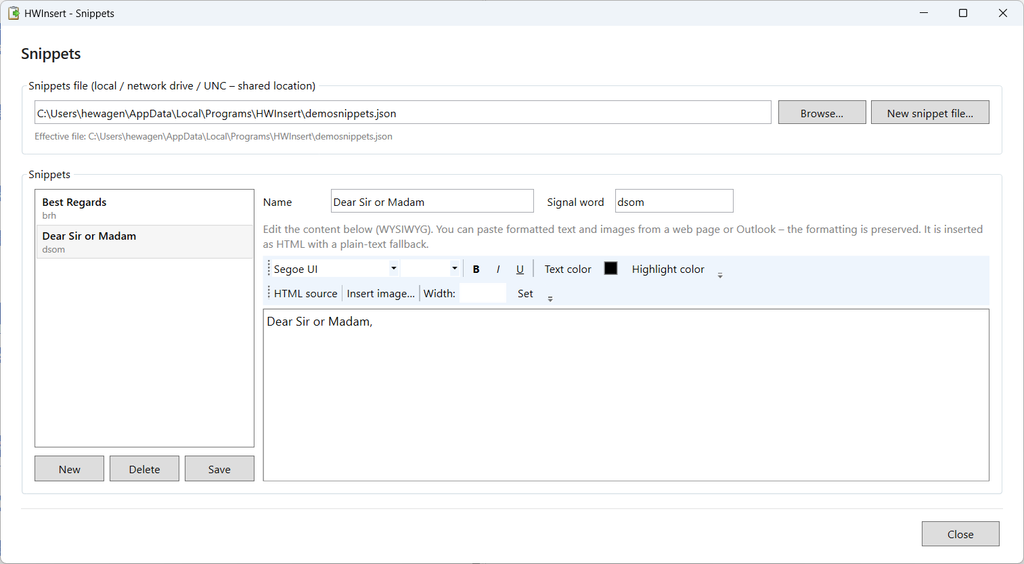
Snippets are created and edited in a proper what-you-see-is-what-you-get editor, so building a formatted footer feels like writing it once in a mail rather than hand-coding markup. You can set the font, size, and color, make text bold, italic, or underlined, highlight it, and insert an image that gets embedded directly in the snippet — no external file to keep alongside it.
Even better, you can paste formatted content straight from a web page or from Outlook, and the editor keeps the formatting and the images. That is usually the fastest way to build a snippet: copy the footer you already use, paste it in, tweak a word, and save. Inserted images can be resized to an exact width while keeping their proportions, and there is an HTML source toggle for the rare moment you want to nudge the markup by hand.
One File, Shared by the Whole Team
Snippets live in a simple snippets.json file, and you choose where that file sits. Keep it locally, or point HWInsert at a mapped network drive or a UNC path so an entire team works from the same set of snippets. When the standard reply or the company footer changes, one person edits the shared file and everyone is up to date.
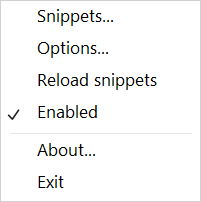
Because a shared file can change under you during the day, there is a Reload snippets command — in the Snippets dialog and right in the tray menu — that re-reads the file without restarting the app. And creating a fresh set is just as easy: a New snippet file option prompts for a name and writes out an empty file ready to fill. Your own path setting is stored separately from the shared snippets, so everyone can point at the same file while keeping their personal configuration local.
- Local, network, or UNC — put the snippets file wherever it makes sense.
- Shared editing — one file, many people, always in sync.
- Reload on demand — pick up changes live, no restart needed.
Active Only Where You Want It
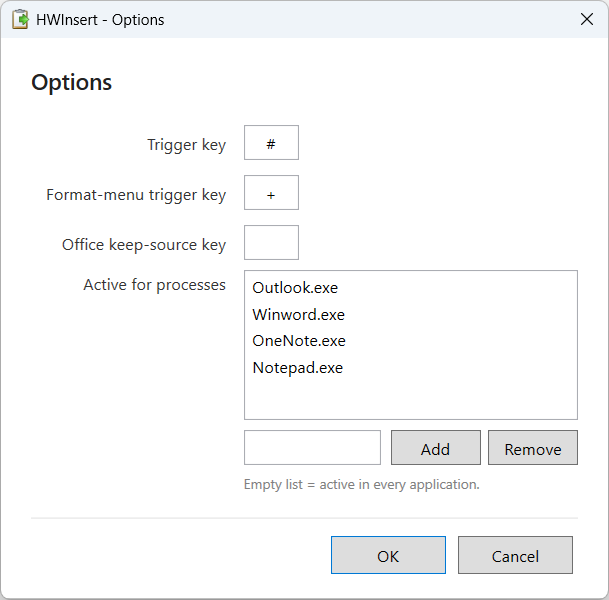
A global text-expander that fires everywhere is not always what you want. Sometimes you only want your snippets in Outlook and Word, and nowhere near a terminal or a game. So HWInsert has a process allowlist: a small, scrollable list in the Options dialog where you add the applications it should be active in — Outlook.exe, Winword.exe, Notepad.exe, and so on.
Leave the list empty and HWInsert works in every application, just as you would expect. Fill it in, and it only expands snippets when one of those programs is in the foreground — quietly ignoring everything else. Adding and removing entries is a simple matter of typing a name and clicking Add, or selecting one and clicking Remove.
Playing Nicely With Word and Outlook
Here is a subtle one that took some detective work. When you paste formatted text into Word or Outlook, they often “merge” it into the surrounding style — quietly stripping your snippet’s fonts and colors to match the document around it. That is usually helpful, and occasionally infuriating when you specifically want your footer to look like your footer.
HWInsert offers an optional keep-source key for exactly this. After pasting, it can send the one-letter keytip for Word and Outlook’s “Keep Source Formatting” paste option, so your snippet keeps its own look instead of being absorbed by the document. The letter differs by language — K in English, B in German — so it is configurable, and left empty by default for plain-text targets like Notepad where it does not apply.
The Little Things That Make It Pleasant
A Modern Tray Menu
The right-click tray menu got the same care as the rest of the app: a clean, flat, Windows 11-style look with a soft rounded highlight, thin separators, and none of the old gray image-margin stripe down the side. Small touches like a properly centered checkmark on the Enabled toggle are the kind of thing you never notice when they are right — and always notice when they are not.
A Quiet Confirmation
When you save a snippet, a tiny toast reading “Successfully saved.” fades in over the dialog and gently fades away again a moment later — enough to reassure you it worked, without a modal box demanding a click. It is a small piece of feedback that keeps editing snippets feeling fast and frictionless.
It Remembers Your Layout
The Snippets window remembers the size you left it at and opens the same way next time, so if you like a big editing area you only have to set it once. It is a minor convenience, but it is exactly the sort of small thing that makes a tool feel like it belongs on your desktop rather than just visiting it.
Tip: Use
#for instant insertion of your everyday snippets, and finish with+instead whenever you want to choose HTML or Text-only for that one paste.
Portable by Design
HWInsert is a self-contained Windows app with no external dependencies. Its local settings live in a simple settings.json, and your snippets in a snippets.json you place wherever suits you — locally or on a share the whole team can reach. There is no registry sprawl and nothing hidden away, so you can drop the app onto another machine and be expanding text in seconds.
That separation — personal settings kept local, snippets kept wherever you point them — is deliberate. It is what lets one shared file serve a whole team while each person keeps their own trigger keys, their own active-application list, and their own window size.
Where It Stands Today
What started as “paste a bit of boilerplate” has grown — with a lot of help from Claude Opus — into a tool I reach for constantly: signal-word expansion in any application, a real WYSIWYG editor with images and colors, HTML with a plain-text fallback, an “Insert as” chooser for the awkward cases, a shared snippets file with live reload, a per-application activation list, Word and Outlook keep-source handling, and a clean, modern tray experience.
It is still a small, focused tool by design, and that is the point. It does one everyday job well — turning a few keystrokes into exactly the text you meant, formatting and all — and then gets out of your way. Shaped one small conversation at a time, it is the text-expander that fits the way I like to work.
If you have ever wished a couple of letters could stand in for a whole formatted paragraph — everywhere you type — HWInsert is my answer to that wish.
© 2026 by Helmut Wagensonner. HWInsert is a personal project. All product and company names are trademarks of their respective owners.
Download v1.0 from here: HWInsert